Daily File Export Setup
To configure the Daily File Export:
- Go to Utilities > System Setup > Databases > Daily File Export Setup
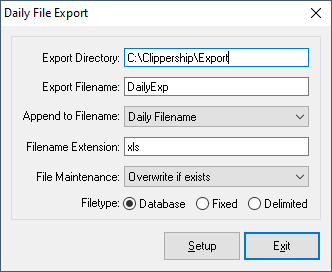
- Configure the Daily File Export dialog box as follows:
- Export Directory
- Type the directory where you want the exported file to be created.
- Export Filename
- Type the name of the exported file.
- Cannot be blank if Append to Filename is None.
- Append to Filename
- To append a date or the name of the Daily File you are exporting to the Export Filename, select an option from the list.
- To use only the Export Filename, select None.
- If Export Filename is blank, you must select something other than None.
- If the user selects the Ship File or the Hold File instead of a Daily File in the Reports-EDI dialog box (on the File menu) when using the Daily File Export report, ‘ShipExpt’ or ‘HoldExpt’ respectively is used as the Append to Filename unless you selected None in this list. Similarly, if the user selects multiple files, ‘MergExpt’ is used.
- Filename Extension
- Type the extension to use for the exported file. Do not include the period.
- File Maintenance
- Select whether to overwrite, append, or exit without creating if the file already exists.
- Filetype
- Select the type of file you want to be created.
- Tip If you plan to view/edit files with Microsoft Excel, LSE recommends setting the Filetype to Database and Extension to XLS.
- Click the Setup button to select the fields you want to include in the exported file.
- Select and arrange which fields you need to include on the export.
- Be sure to include STATUS, as the export will include all records, voided or not.
- Click Exit to return to the main processing screen.
Add Daily Export to a Reports-EDI batch:
To create a Daily File Export, it needs to be added to a Reports-EDI or Custom Functions batch.
- Go to Utilities > System Setup > Reports-EDI
- Click Add button on the Reports-EDI Setup dialog box.
- Type a name for your Daily Export batch Batch Name, i.e. “Create Export File”.
- Click the Edit button to open the Edit Batch Item dialog box.
- Select “Daily File Export” from the list of Batch Items.
- Leave Account at “ALL” (unless you only want records exported for a specific account), and Copies at 1.
- Click OK.
- Click Exit in the Reports-EDI Setup dialog box to return to the main processing screen.
Running the Daily File Export
- Click Reports-EDI
- Select date or range of dates desired
- Select the Report-EDI batch item that contains the Daily File Export